
Picture the room at 2:11 a.m.: the monitor crackles, one status light blinks, and suddenly an ordinary nursery shelf feels like the least reassuring place in the house. A strange noise from a baby monitor is not proof that someone hacked it. Static, a dropped connection, a camera that resets its position, or an app that signs you out can all have ordinary causes. But an unfamiliar login, a password or setting you did not change, a new shared user, or a vendor security alert deserves a calm security check right away.
If someone is threatening your family, seems to know your home or routine, or you believe your child is in immediate danger, move your child to safety and contact local emergency services. For everything short of that line, you do not need to become a cybersecurity detective at bedtime. You need to contain access, protect the account, and keep the evidence that may explain what happened.
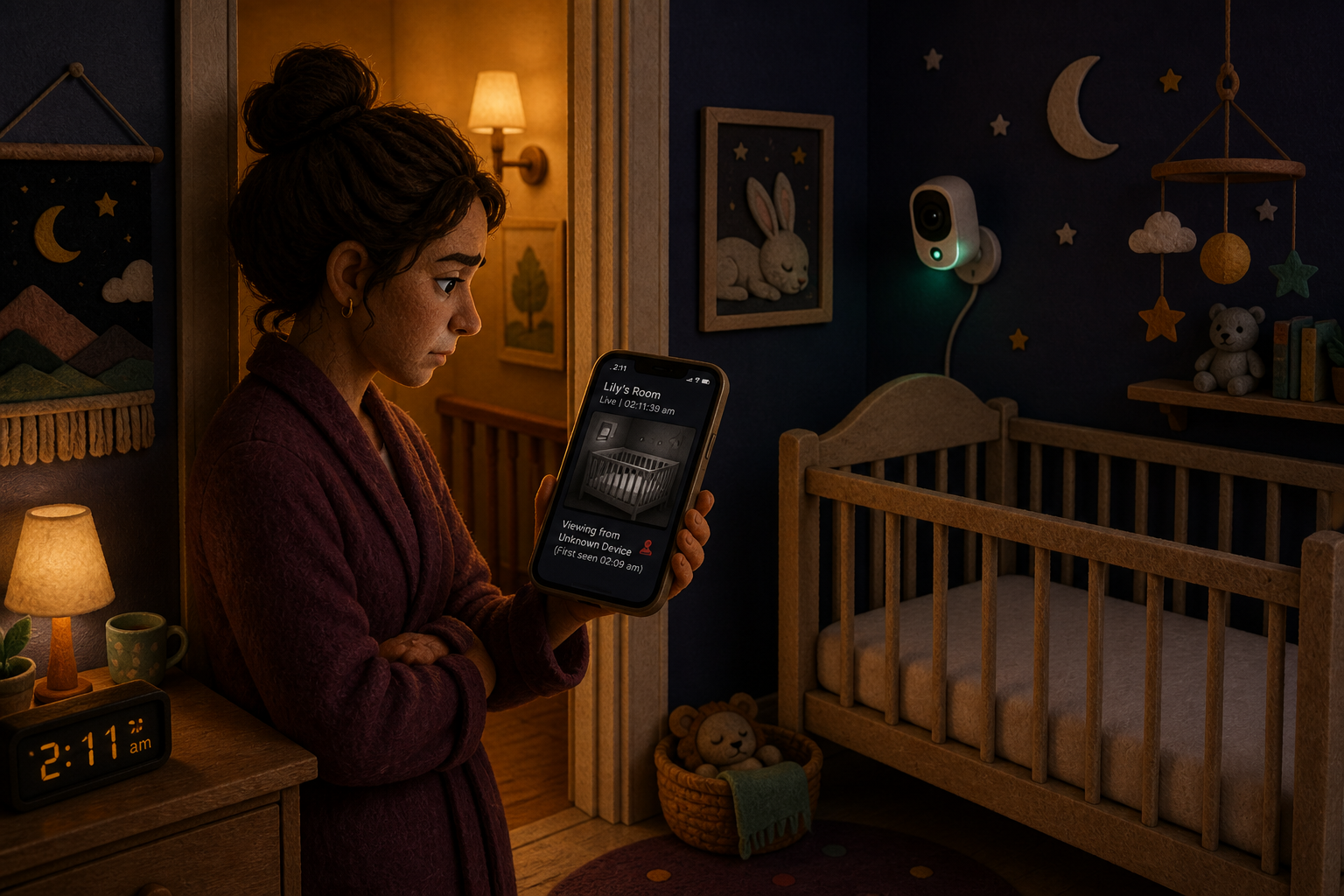
I would rather have a parent perform one unnecessary password reset than spend the night staring at a blinking status light and trying to decide whether it feels sinister. The goal is not to prove a dramatic theory. It is to close the doors that should be closed.
What makes unauthorized access more likely?

No single glitch can identify who accessed a monitor. Look for account evidence and changes that require permission, especially:
- a login, device, or session you do not recognize;
- a password, recovery email, camera name, privacy setting, or notification setting that changed without your permission;
- a new person listed under family sharing or camera access;
- a vendor alert about a login, password reset, or account change you did not initiate;
- remote-viewing activity at a time when no authorized caregiver was using the app; or
- repeated loss of access after you secure the account.
That is the distinction I want to keep clear: a malfunction is a reason to troubleshoot; unauthorized account evidence is a reason to contain. A camera moving unexpectedly may be a motor-calibration issue, an automatic tracking feature, a saved preset, or another authorized caregiver. It becomes more concerning when it appears alongside an unfamiliar session or a setting change.
Glitch or access? Check the evidence, not the adrenaline
Often has an ordinary explanation
- brief static or audio popping;
- Wi-Fi drops or frozen video;
- an app crash or forced sign-in;
- a camera returning to a preset position; and
- activity from a caregiver who already has access.
Calls for immediate account containment
- an unknown login or device;
- changed credentials or security settings;
- an unknown shared user;
- a login alert you did not trigger; and
- access that returns after a password change.
Use the columns as a starting point, not a diagnosis. If several signs appear together or you feel threatened, disconnect the device and escalate.

How to lock down a baby monitor tonight
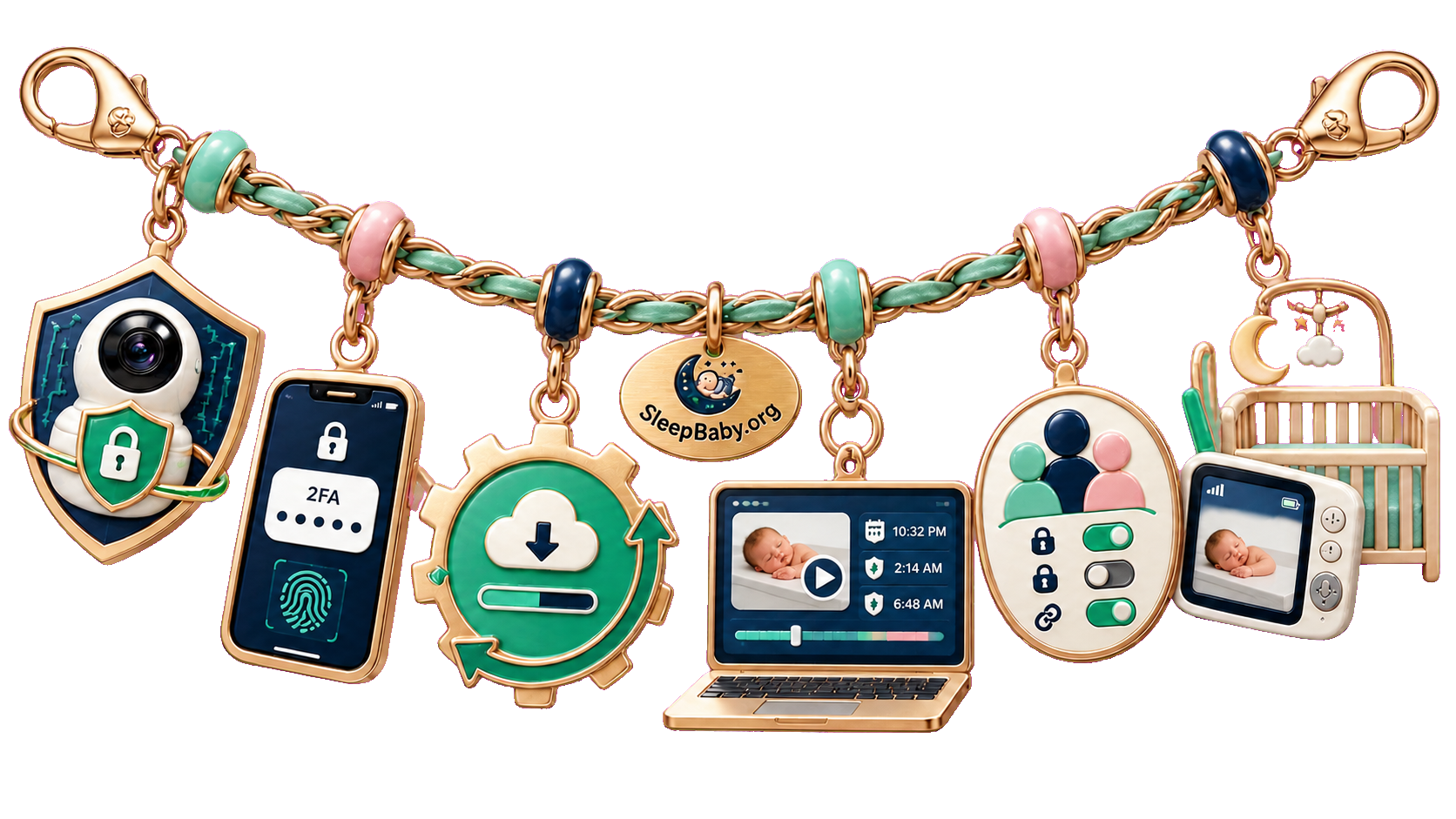
The Federal Trade Commission includes internet-connected baby monitors in its guidance for connected cameras. Its advice is layered because no single setting makes a device impossible to compromise.

Give the monitor account its own password
Use a long, unique password that does not protect your email, shopping account, router, or another camera. Reused passwords turn one unrelated breach into a key that may fit several doors. If the monitor service offers two-factor authentication, enable it. Also review which phone number, email address, or authenticator receives recovery codes.
Remove access that no longer belongs
Open the app’s family, sharing, household, or camera-access screen. Remove old phones, former caregivers, expired guests, and accounts you no longer recognize. If a grandparent or babysitter still needs access, give them their own supported account rather than sharing your main password.
Update the monitor, app, and router
Install current app and firmware updates, and check whether the manufacturer explains how long it supports security updates. Update the home router too. A monitor can have a careful password while sitting on a router that still uses old software or default administrator credentials.
Secure the home Wi-Fi
Use WPA2 or WPA3 security, replace the router’s default administrator password, and turn on automatic updates when the router supports them. The FTC also suggests putting cameras on a separate network. A guest or IoT network can reduce how easily a problem with another connected device reaches the monitor, although it is risk reduction—not an invisible force field.
Turn off remote access if you do not use it
If you only view the monitor at home, check whether remote viewing or cloud access can be disabled. Fewer open routes mean fewer routes to manage. Write down what you changed; exhausted brains are excellent at remembering the feeling of a settings screen and less gifted at remembering the actual setting.
The safest plan is not “find the perfect monitor and never think about it again.” It is “choose a monitor whose doors you can see, then check that they are still closed.”
What to look for before buying a connected monitor

A product page may say “secure” without telling you what that means. I would look for specific answers to these questions:
- Does it encrypt the important data?
- Look for clear information about encryption for account details, live video and audio, and any recordings stored by the service.
- Does it offer two-factor authentication?
- Confirm that the feature protects the account you will actually use and learn which methods are supported.
- How are updates delivered, and for how long?
- A clear update policy matters more than a vague promise that the product uses “advanced security.”
- Can you review sessions and shared users?
- Useful controls include a list of signed-in devices, the ability to sign out other sessions, individual caregiver accounts, and visible sharing permissions.
- Can remote access be limited?
- Check whether you can disable cloud viewing, restrict sharing, or use a local-only mode if that better fits your household.
- What happens to recordings?
- Understand whether clips are stored locally or in the cloud, how long they remain, and how to export or delete them.
Children’s privacy law is not a magic label that automatically applies to every baby-monitor device. The FTC explains that COPPA coverage depends on the service and its data practices, including circumstances beyond child-directed websites. Treat a company’s privacy explanation as something to read, not as a substitute for checking how the camera, account, sharing, and recordings actually work.
After suspected access: what to preserve and when to escalate
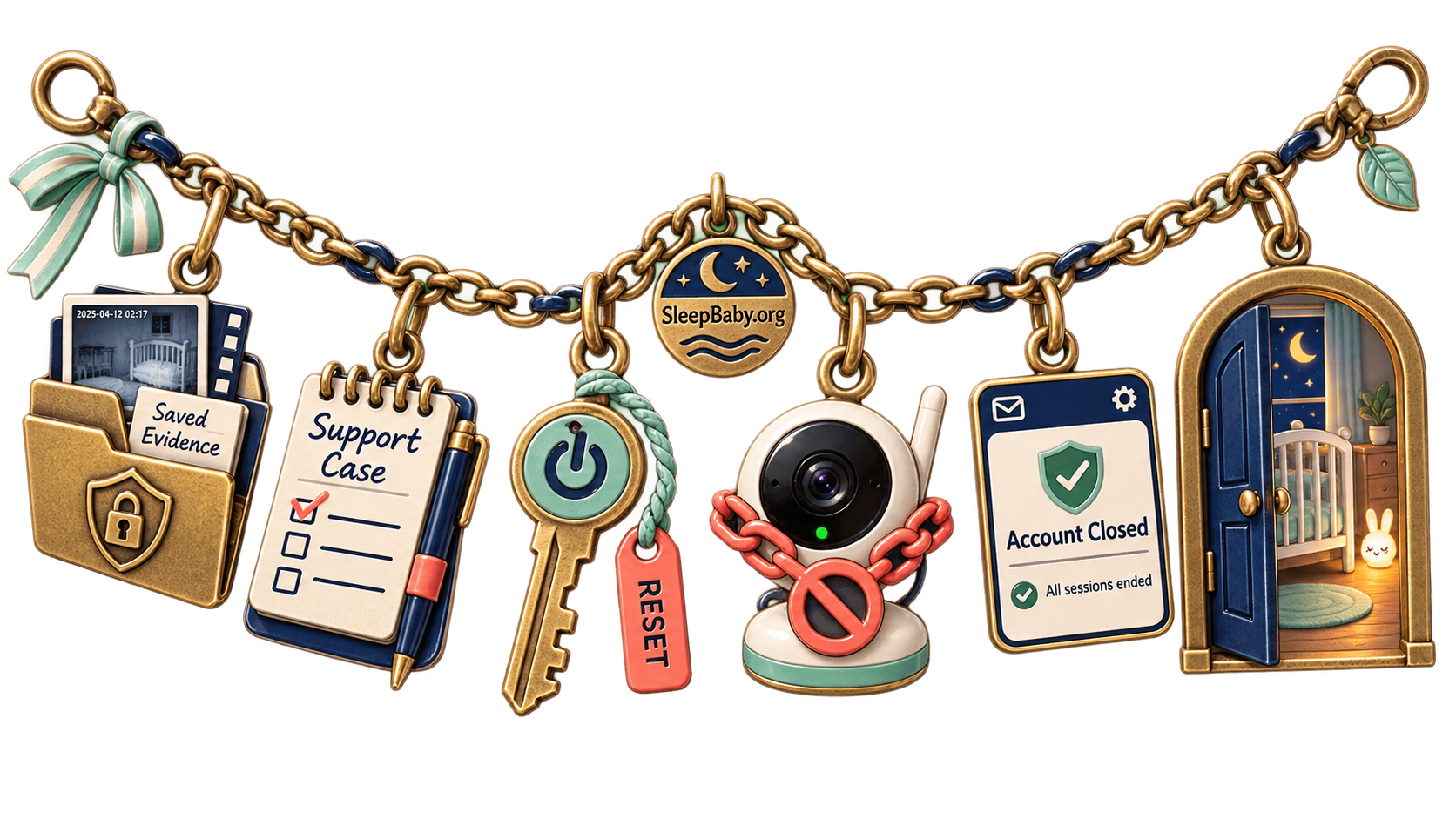
Before factory-resetting everything, save account alerts, session lists, timestamps, changed settings, and any messages or audio that concern you, when it is safe to do so. Contact the manufacturer through a trusted route and ask it to review account access. Keep the case number and a short timeline of what you noticed and what you changed.
If a person threatens you, speaks about details of your home or routine, returns after you secure the account, or appears to be targeting your child, stop treating it as a device-support problem. Move your child to safety and contact local law enforcement or emergency services as appropriate. Do not confront an unknown person through the monitor.
If the evidence points to an exposed password rather than a targeted threat, change that reused password anywhere else it appears—starting with your email account, because email often controls password recovery. Watch for new alerts over the next several days, but do not leave the monitor connected merely to “catch” someone.
Before you retire, return, or resell the monitor
- Download any recordings you genuinely need.
- Delete stored clips and household details according to the manufacturer’s instructions.
- Remove every shared user and unlink the camera from your account.
- Perform the documented factory reset.
- Confirm in the app that the old device no longer appears.
The small household detail that matters here is the monitor that migrates from nursery shelf to junk drawer, still attached to an old account because nobody had the energy to finish the breakup. Give the device a clean ending. Your future self—and the next owner—will be grateful.
When the monitor keeps you awake
Make the security check finite, then let the room be quiet again
A privacy scare can turn every crackle and blinking light into a fresh question. Work through the containment steps, write down what you changed, and choose a temporary way to monitor your baby that does not require you to keep reopening the app. Once the doors are closed, that nursery shelf can become an ordinary shelf again—and your bedtime plan deserves a chance to do its own job.




What viewers said10 comments · 4 replies+
Archived comments from the original Baby Sleep Miracle presentation. Not independently verified by SleepBaby.org; individual experiences vary.
Thank you so much for this video! I had no idea about the dangers of baby swings :O
Hi Mary-Ann. I have a question: Is method in any way similar to the ones recommended by Dr Bucknam, Dr. Weissbluth or Dr. Karp? We tried those but none of them help.
Hi Regina, thank you for your question. The short answer is no. The techniques I share in my guide are based on newest scientific research and this is why I have never seen any approach similar to the one I recommend.
This method really works! I tried it on my son Jesus and after just one week he went from waking up more than 5 times a night to waking up just once or twice. You are a lifesaver, Mary-Ann!
I'm truly impressed with how much information you share in your video. And all for free! I can feel that you truly care about mothers like myself, and that's hard to find these days. I have recommended your site to several of my friends already.
Mary-Ann, our child suffers from autism. Is your approach still suited?
Chloe, I made sure my method can be used with any child, even babies who are special like yours. Please note that I'm not a doctor and that I always advice to consult with your physician because nothing is more important than the safety and well-being of your love.
Hallo Mary-Ann, I'm from Germany. Do you have your guide in German?
Hello Heide, we do! Normally you should already see our video in German. If not, please contact our support so they can guide you
Thenk you for your answer, Mary-Ann!
I just completed your approach and I have to say, it worked almost too well. Yes, it took a bit of getting used to with your bedtime routine but the difference is huge. My son George used to take 1 hours to go down and now he's firmly asleep in no more than 10 minutes! You're the best!
It seems I'm the only man watching this video, lol! What you shared about the 'emotional backpack' made immediate sense to me and I can't wait to help my little girl Mila to unpack it!
Hey there, just discovered your site and this really sounds different. Just wanted to say thanks for sharing :)
For everyone who's still thinking about getting Mary-Ann's guide I want to advise you to go ahead. I wasn't sure myself but now I'm so thankful I invested in this program. It made a huge difference in our life as a family and yes, my baby girl does sleep through the night now.